
Back to Docs
Sender, Subject and Message Editor
Set the From name and email, use name bypass, write the subject, and edit your message in Visual, HTML or Preview mode.
compose
editor
html
from name
subject
Sender, Subject and Message Editor
Sender
- From name: the display name recipients see, e.g. Alex from Acme.
- From email: the sending address. Leave it blank to use your SMTP login, if that login is an email address. Invalid addresses are flagged as you type.
- Name bypass: when From email is blank, builds the address from the From name on your SMTP domain. For example, Sales Team becomes
sales.team@yourdomain. - The line under From email (Sends as …) shows exactly what will be sent.
Multi names next to the From name opens the From name rotator. Custom headers opens the headers panel.
Subject
Type your subject line. The counter shows its length and turns amber past 60 characters, where many inboxes start cutting subjects off. Multi subjects opens the subject rotator.
Subjects support personalization tokens and spintax.
Message editor
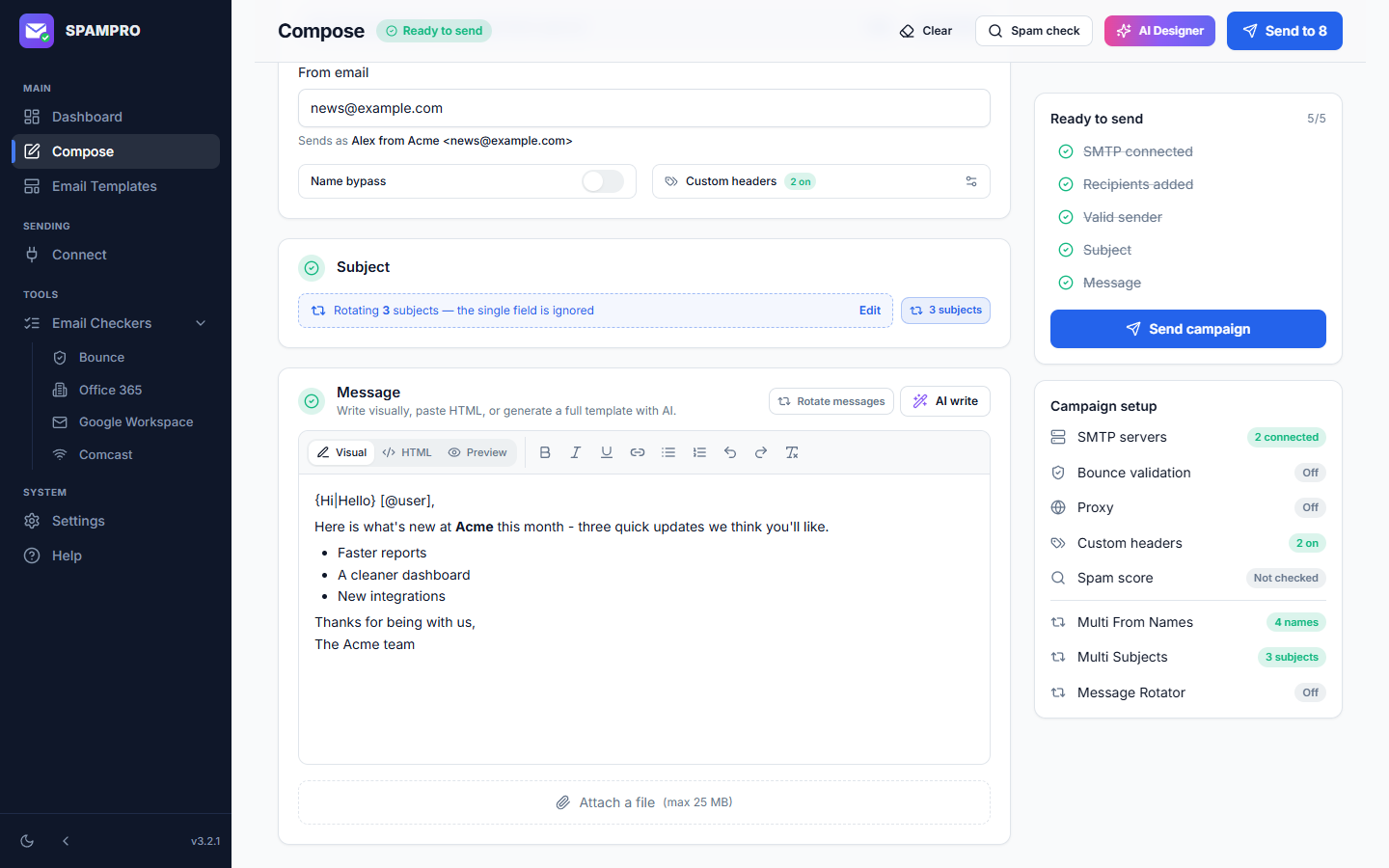
The editor has three modes:
- Visual: write like a normal email. The toolbar has bold, italic, underline, links, bullet and numbered lists, undo / redo and clear formatting.
- HTML: edit or paste raw HTML. Full email templates open here automatically.
- Preview: see the email as recipients will, at desktop and mobile width.
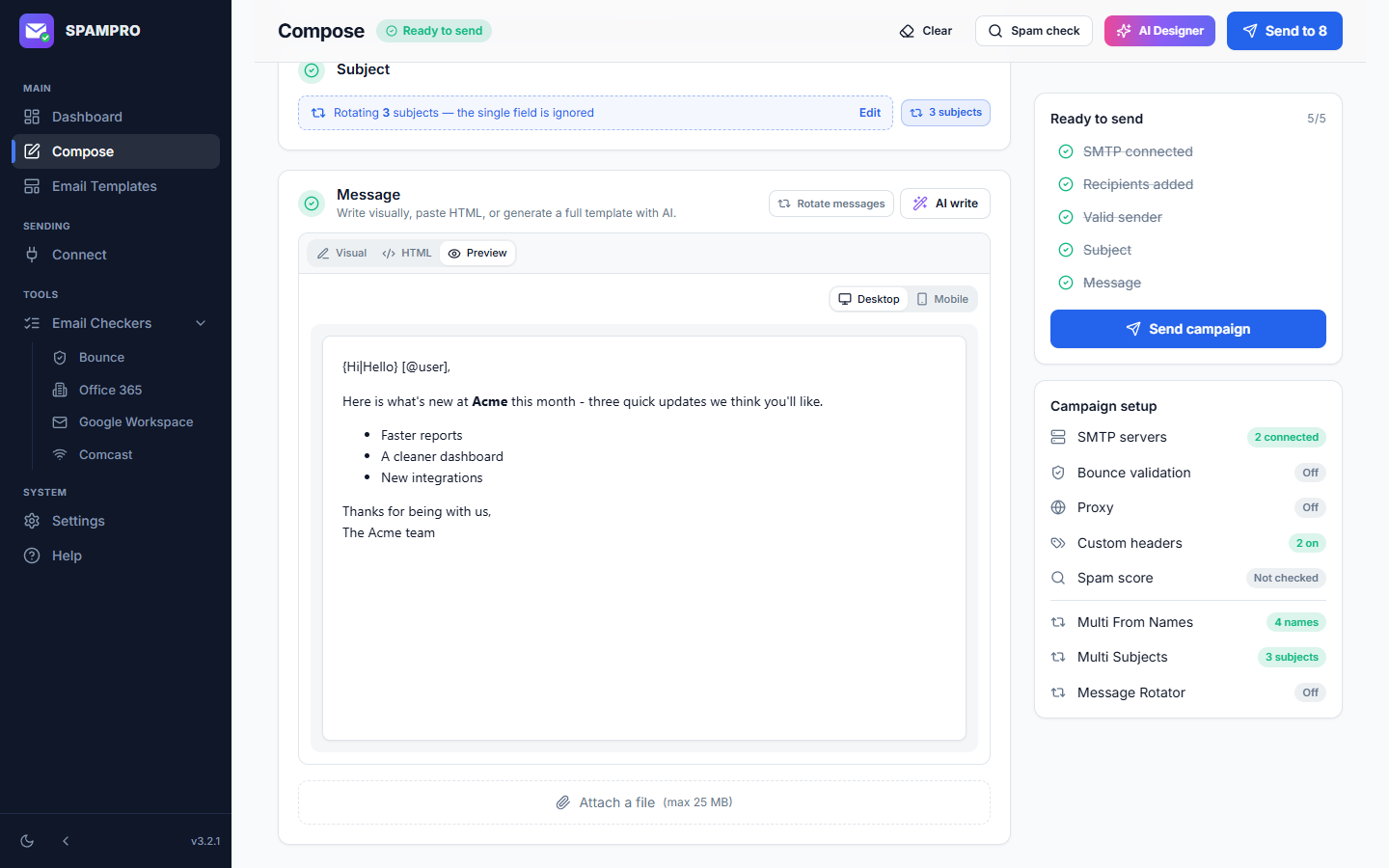
Other message tools:
- Rotate messages: send several different bodies in one campaign. See Message rotator.
- AI write: generate the message with AI. See AI Campaign Designer.
- Attach a file: up to 25 MB. See Attachments.
- Use a design from Email Templates → Use in message. See Email templates.
Your From name, From email, subject and message are kept as a draft on this PC, so they're still there next time you open SpamPro.
Next
On This Page
Still Stuck?
Can't find the answer here? Our team responds fast on Telegram and email.
Contact SupportTelegram Chat