
Back to Docs
Install and Activate SpamPro
System requirements, installing SpamPro on Windows without admin rights, and activating your license key.
install
activate
license
getting-started
Install and Activate SpamPro
System requirements
| Minimum | Recommended | |
|---|---|---|
| Operating system | Windows 10 (64-bit) | Windows 11 |
| Memory (RAM) | 4 GB | 8 GB |
| Disk space | 500 MB | 1 GB |
| Other | Microsoft Edge WebView2 Runtime (built into Windows 11, free download for Windows 10) | |
| Network | Outbound SMTP access (ports 25, 465 or 587) to your mail servers |
Install SpamPro
- Download the latest installer,
SpamPro-Setup-x.y.z.exe, from the SpamPro product page. - Run the installer. No administrator rights are needed: SpamPro installs into your own user profile.
- If your PC doesn't have the WebView2 Runtime, the installer offers Microsoft's free download. Install it before you start SpamPro.
- Choose whether to create a desktop icon, then finish the installer and start SpamPro.
Tip: Close SpamPro before running an installer. Setup won't continue while SpamPro is open.
Activate your license
The first time SpamPro starts, it asks for your license.
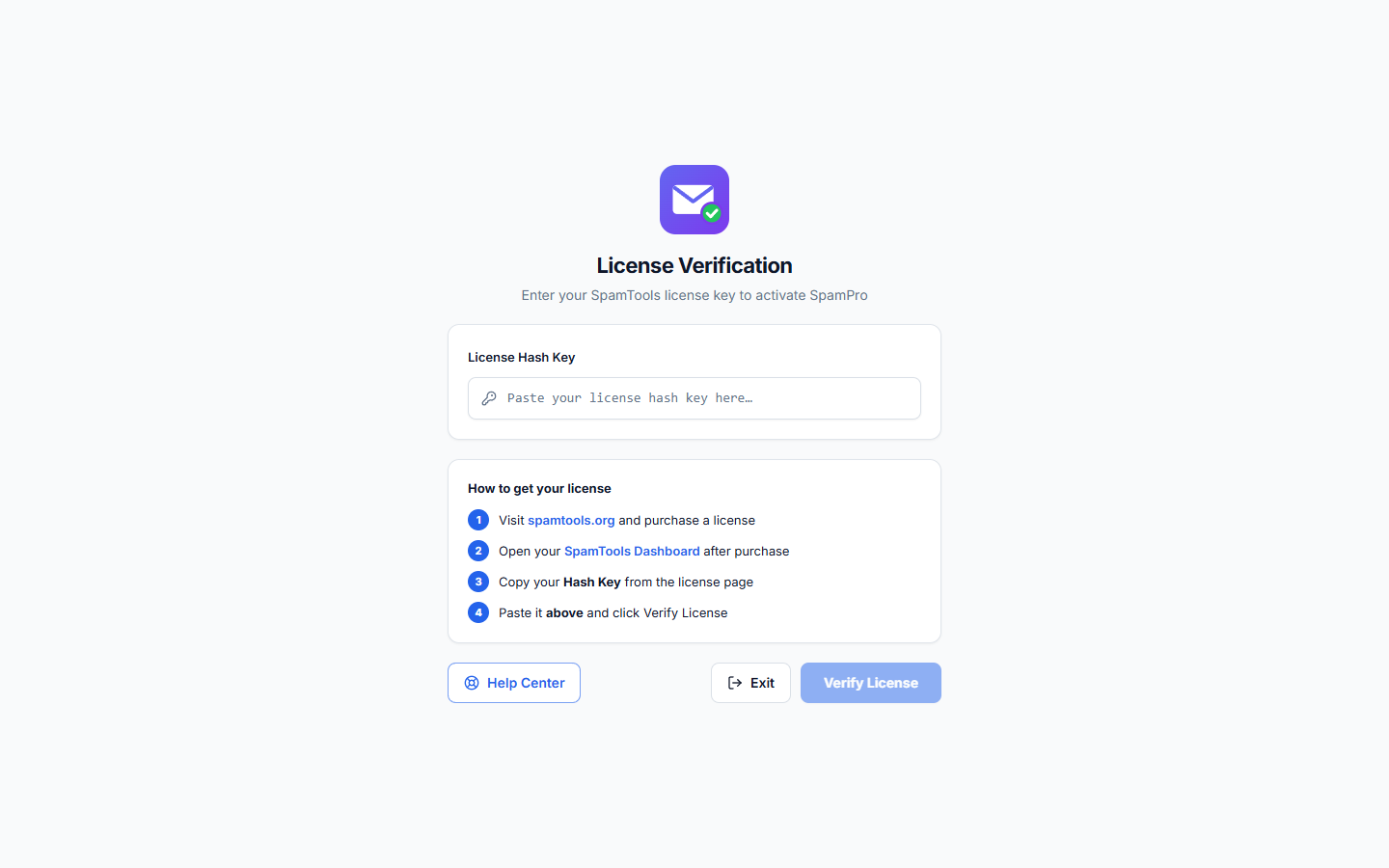
- Buy a license at spamtools.org if you don't have one yet.
- Open your SpamTools Dashboard and go to your license.
- Copy your Hash Key.
- Paste it into License Hash Key and click Verify License.
SpamPro checks the key online and, if it's valid, opens the Dashboard. The license is saved on your PC, so you only do this once.
If activation fails
- Check you copied the whole hash key, with no spaces at either end.
- Make sure the license is active and hasn't expired in your SpamTools Dashboard.
- Each license works on a limited number of PCs. To move SpamPro to a new PC, use Settings → License → Disconnect license on the old one first.
- Check your internet connection. Activation needs to reach the license server once.
Managing your license later
Your license details are always in Settings → License. See License management.
Uninstalling
Use Windows Settings → Apps → Installed apps → SpamPro Email Sender → Uninstall. You're asked whether to also delete your SpamPro data (license, settings, SMTP servers and history). The default is No, which keeps it so a future install picks it up again.
Next step
On This Page
Still Stuck?
Can't find the answer here? Our team responds fast on Telegram and email.
Contact SupportTelegram Chat