
Add Recipients and Import Lists
Paste recipients or import .txt, .csv, Excel and JSON lists, pick the CSV email column, and remove duplicates.
Add Recipients and Import Lists
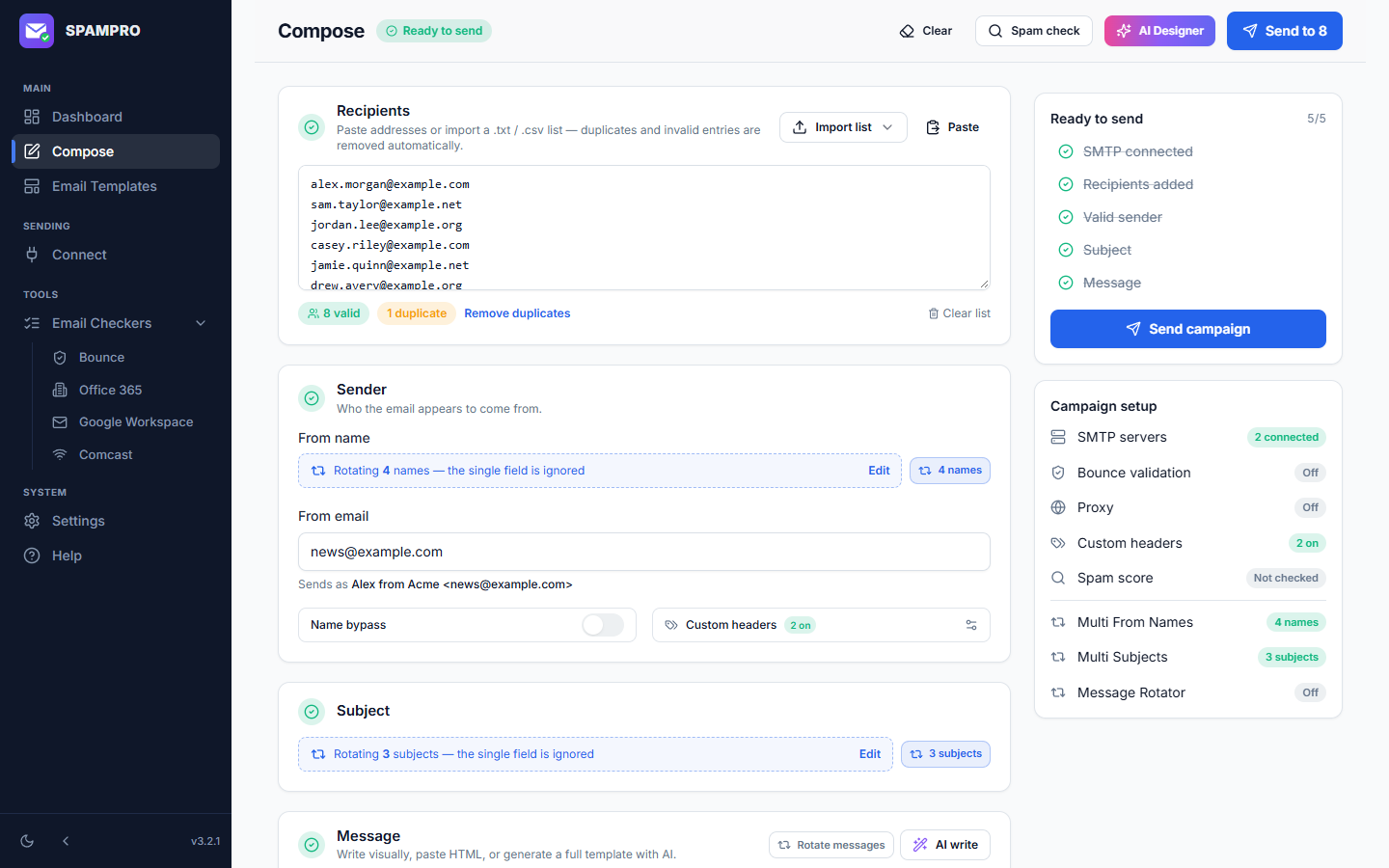
Recipients are the first step in Compose.
Paste addresses
Paste into the box in any layout: one per line, separated by commas or semicolons, or mixed into other text. SpamPro picks out every email address. Use Paste to paste from the clipboard in one click.
Import a file
Click Import list or drop a file onto the box:
| File | What's imported |
|---|---|
| Text (.txt) | Every email address in the file. |
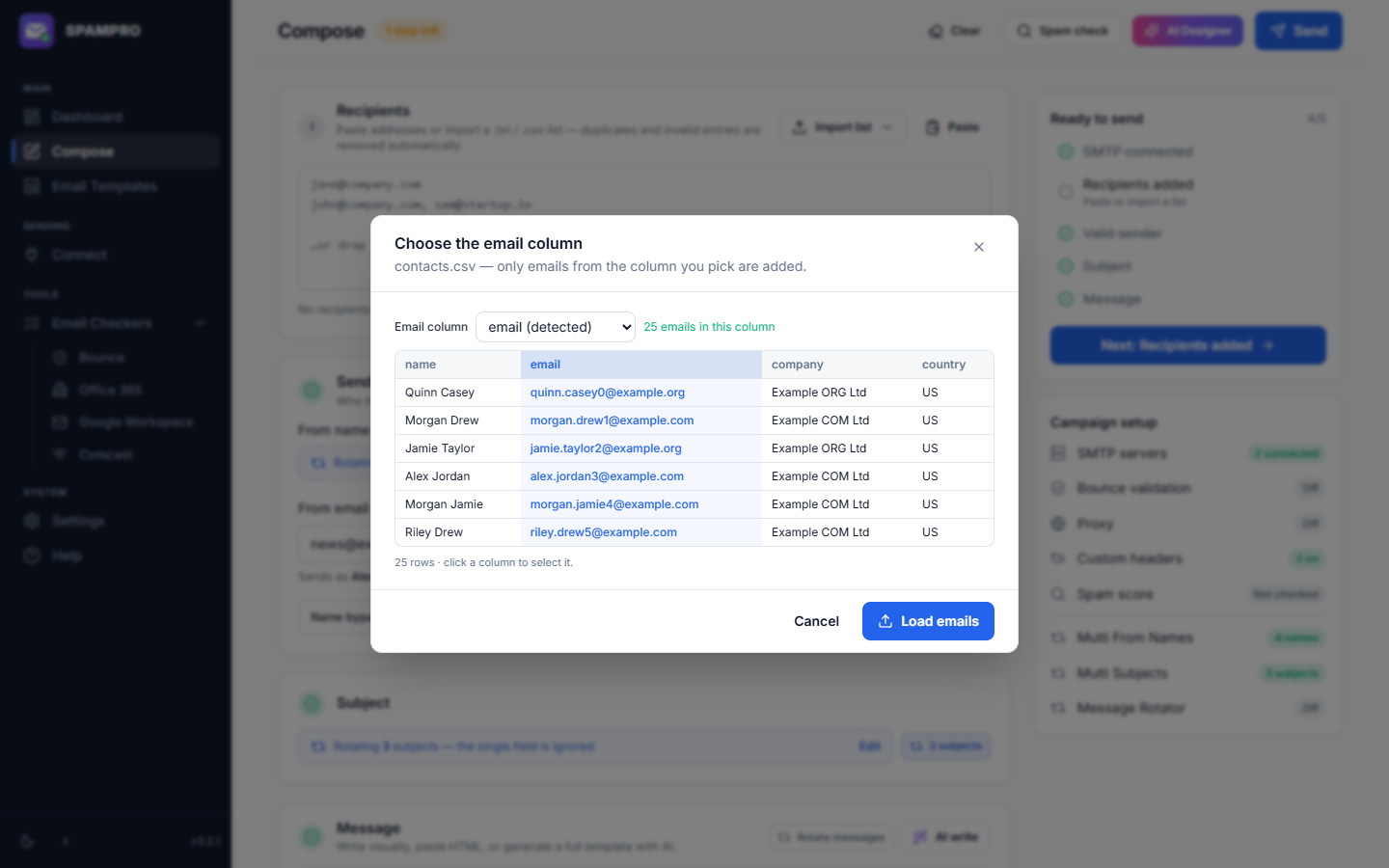
| CSV (.csv) | Only the column you choose (see below). |
| Excel (.xlsx) | Every email address in any cell of any sheet. |
| JSON | Every email address in the file. |
Old .xls files: save them as .xlsx or .csv first.
Choosing the CSV email column
For CSV files, SpamPro opens a preview and detects the column that most likely holds the emails. The detected column is highlighted and shows how many emails it contains. Pick a different column from Email column if needed, then click Load emails.
Replace or append
If the box already has emails, SpamPro asks whether to Replace them or Append the new ones.
Duplicates and invalid addresses
Under the box you'll see:
- Valid: addresses that will be sent to.
- Duplicates: with a Remove duplicates button.
- Invalid: entries that aren't real addresses.
Duplicates and invalid entries are never sent to, even if you don't remove them. Clear list empties the box.
Load from the email checkers
On any email checker job, Load to Compose adds the good addresses to your recipients, skipping any that are already there.
Privacy
Your recipient list is kept in memory only while SpamPro is open. It survives moving between pages, but it is never saved to disk, and campaign files never include recipients.
Next
Still Stuck?
Can't find the answer here? Our team responds fast on Telegram and email.
Contact SupportTelegram Chat