
Back to Docs
Send a Test Email
Send a template to up to 3 addresses through a connected SMTP server to check it in a real inbox before your campaign.
test email
email templates
preview
smtp
Send a Test Email
Before sending a campaign, send the template to yourself and check it in a real inbox: Gmail, Outlook, a phone, and so on.
Where to find it
The Test button appears whenever an SMTP server is connected:
- in the builder's top bar, next to Use in message,
- on every template card in Email Templates,
- in the template Preview window.
No connected SMTP server? Connect one first in Connect.
Send the test
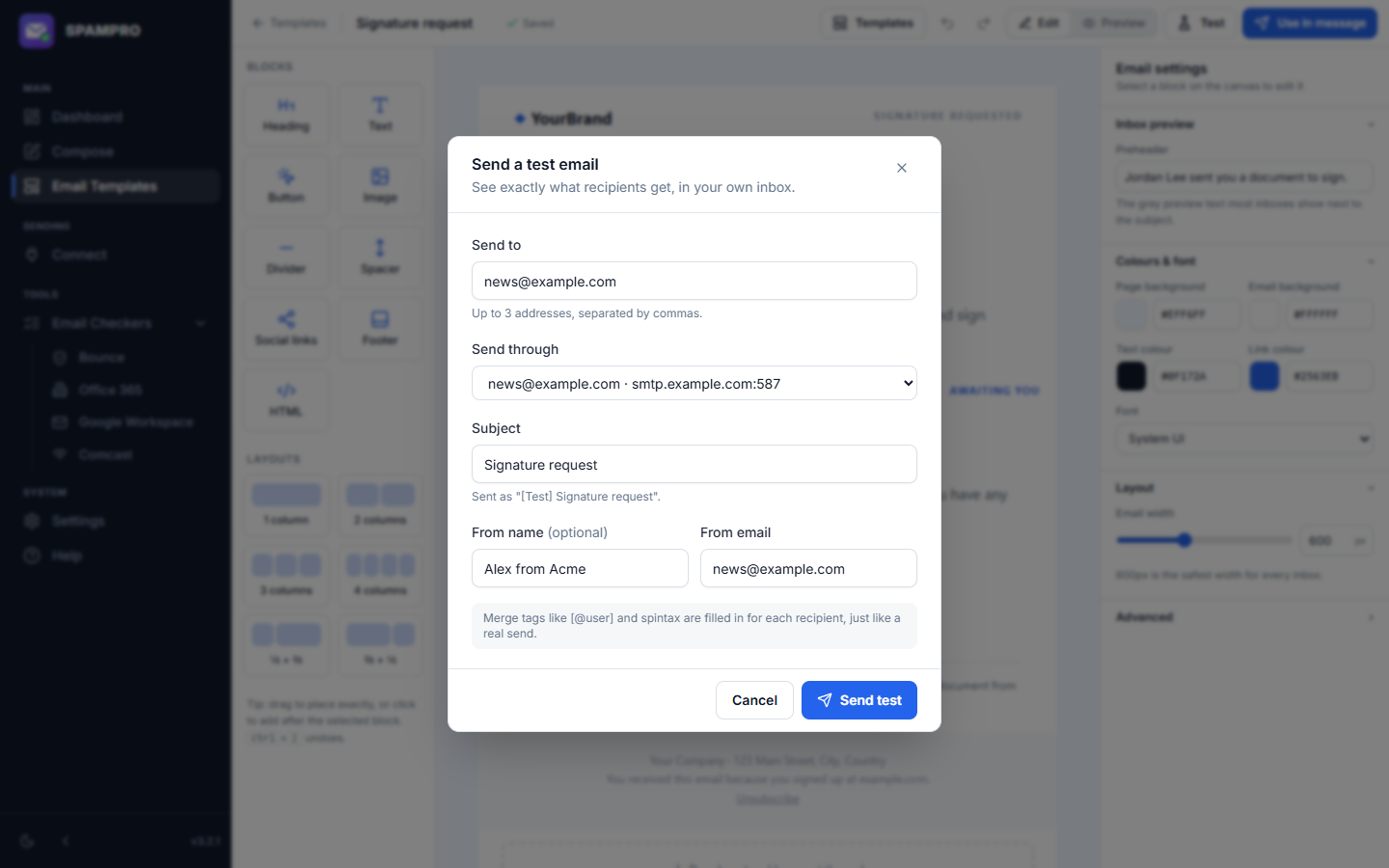
- Send to: up to 3 addresses, separated by commas. SpamPro remembers the last ones you used.
- Send through: the connected SMTP server to use, picked from a list if you have several.
- Subject: starts with the template name. It's sent as "[Test] your subject".
- From name (optional) and From email. These are filled in from your Compose draft. A From email is required if your SMTP login isn't an email address.
- Click Send test.
You'll see Test sent to … via your SMTP server, or the server's error if it failed. You can click Send again after changing the template.
What the test shows
- Merge tags and spintax are filled in for each address, exactly like a real send.
- The email is sent with both an HTML and a plain-text version.
- Any warnings (for example a missing unsubscribe URL) are listed with the result.
Tips
- Not in your inbox after a minute? Check the spam folder, which is a useful signal in itself.
- Test with a Gmail and an Outlook address. They show emails slightly differently.
- You can send one test every few seconds.
On This Page
Still Stuck?
Can't find the answer here? Our team responds fast on Telegram and email.
Contact SupportTelegram Chat