
Back to Docs
Dashboard: Statistics and Email Log
Sent, failed and bounced totals, SMTP connection results, success rate and the log of every email sent.
dashboard
statistics
email log
reports
Dashboard: Statistics and Email Log
The Dashboard is the first screen you see. It gives you an overview of everything you've sent.
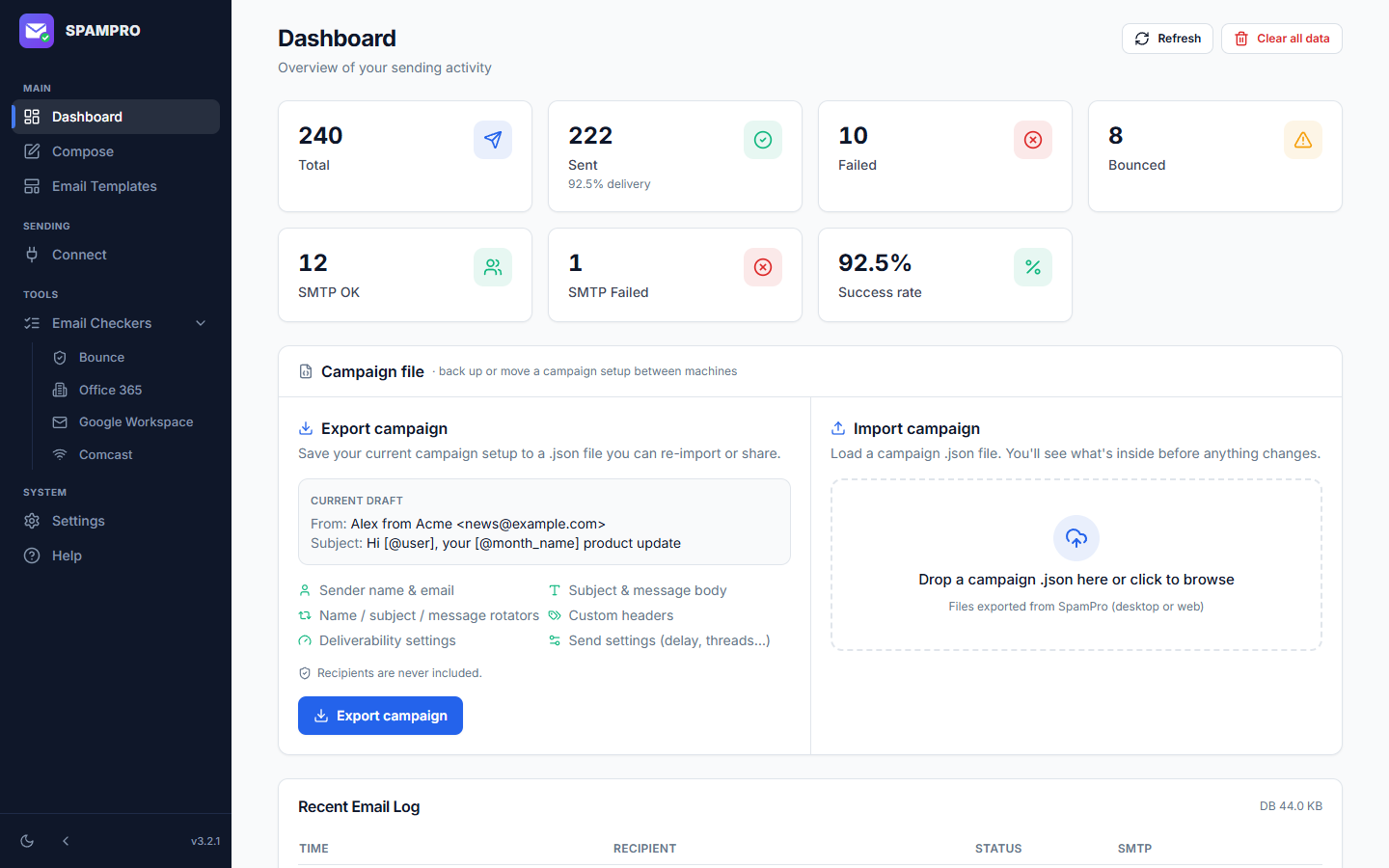
Counters
| Counter | Meaning |
|---|---|
| Total | Every email attempted. |
| Sent | Accepted by the SMTP server, with your delivery %. |
| Failed | Rejected or not sent (for example a 421 deferral). |
| Bounced | Refused because the address doesn't exist (for example 550 5.1.1 User unknown). |
| SMTP OK | Successful SMTP connections. |
| SMTP Failed | SMTP connections that failed (for example a wrong password). |
| Success rate | Sent as a percentage of total. |
Recent Email Log
Scroll down to the Recent Email Log: the time, recipient, status and SMTP server of each recent email. The size of the log database is shown at the top right.
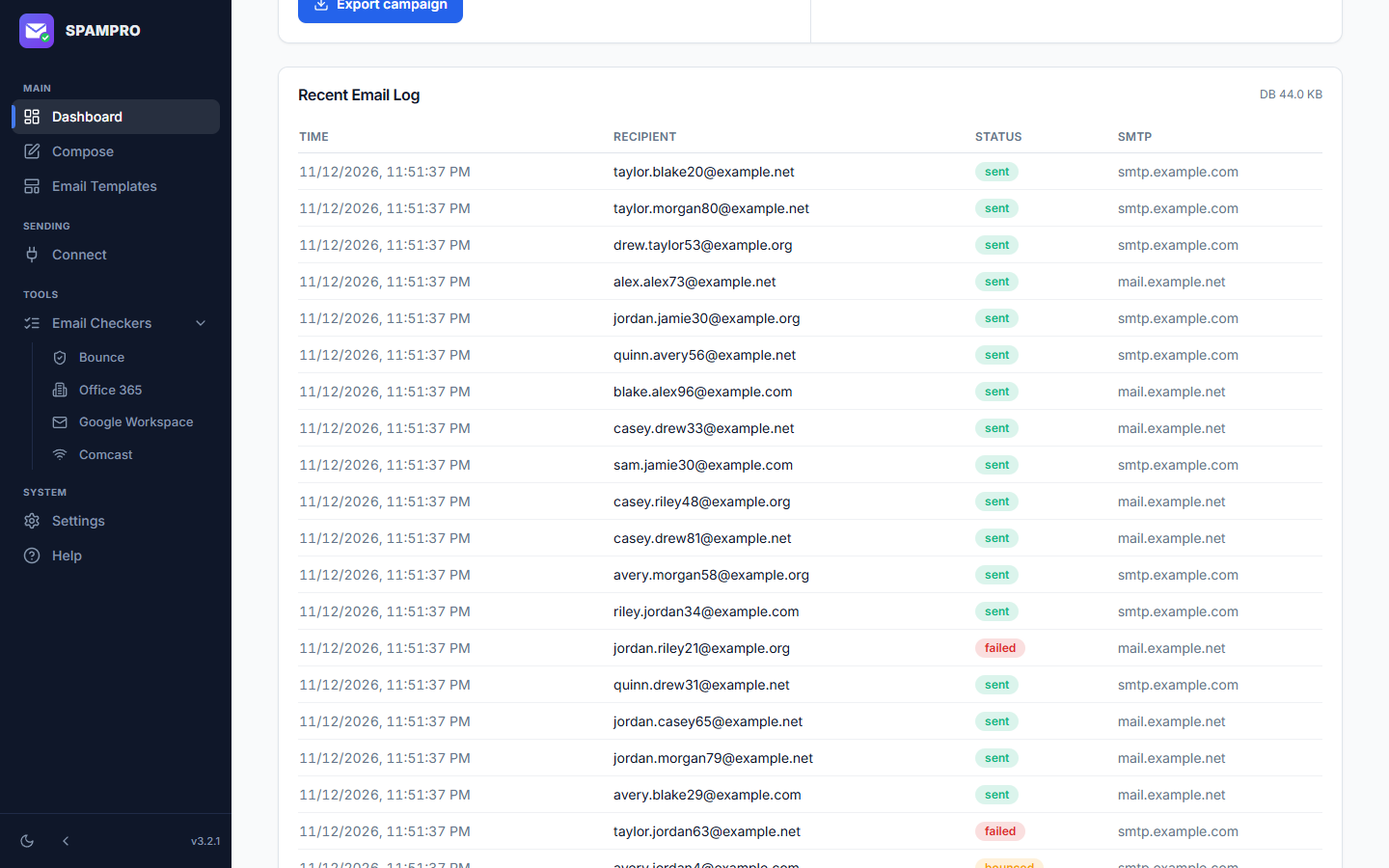
Use it to:
- confirm a campaign went out,
- find the SMTP error behind a failure,
- spot which server is causing problems.
Buttons
- Refresh: reloads the numbers.
- Clear all data: empties the statistics and log. It asks first and can't be undone. It doesn't touch your settings, SMTP servers or templates.
Campaign file
The Dashboard also holds Export campaign and Import campaign. See Export and import campaigns.
On This Page
Still Stuck?
Can't find the answer here? Our team responds fast on Telegram and email.
Contact SupportTelegram Chat